Microfluidics application note
Published on 27 August 2019
SET-UP TIME : 10-15 MIN / DIFFICULTY : *****
Abstract
This application note proposes a microfluidic cardiac cell culture model (μCCCM) to recreate mechanical loading conditions observed in the native heart (in both normal and pathological conditions) by using an Elveflow OB1 pressure and flow controller. In order to recreate a living tissue’s condition, the heart cells situated inside the chip are obtained via 3D cell culture.
The OB1 Smart Interface allows to easily configure complex functions (such as sinus, square, constant, etc) and add them to a project scheduler in order to mimic the numerous physiological effects of a beating heart (pressure, strain, and shear stress), subjecting cells in culture to in vivo-like conditions essential to gene expression, growth, and differentiation.
Possible Applications for microfluidic cardiac cell culture models:
– Regenerative medicine/stem cells
– Drug discovery and testing
– Study of other cell types
Cell biology experiments with cells under continuous perfusion can be performed with our dedicated Perfusion Pack.
Components list


You will also need a trident microfluidic chip.
Setup diagram
This picture shows the microfluidic setup that will be used for this application note.
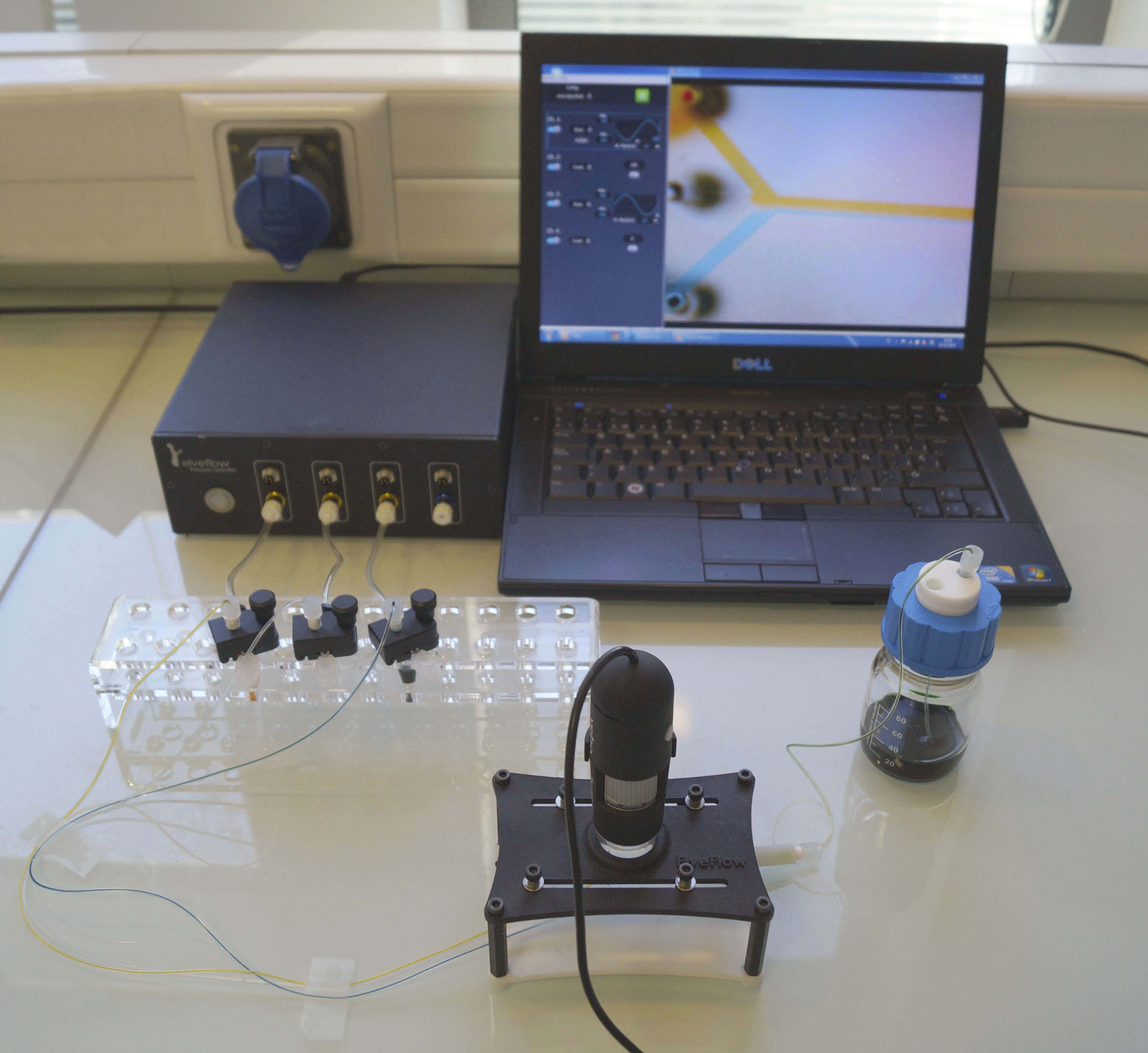
As often as possible, avoid using soft tubing (like Tygon) which involves compliance and then increases the response time of the system. If you’re not familiar with microfluidic tubings, feel free to read our dedicated reviews.
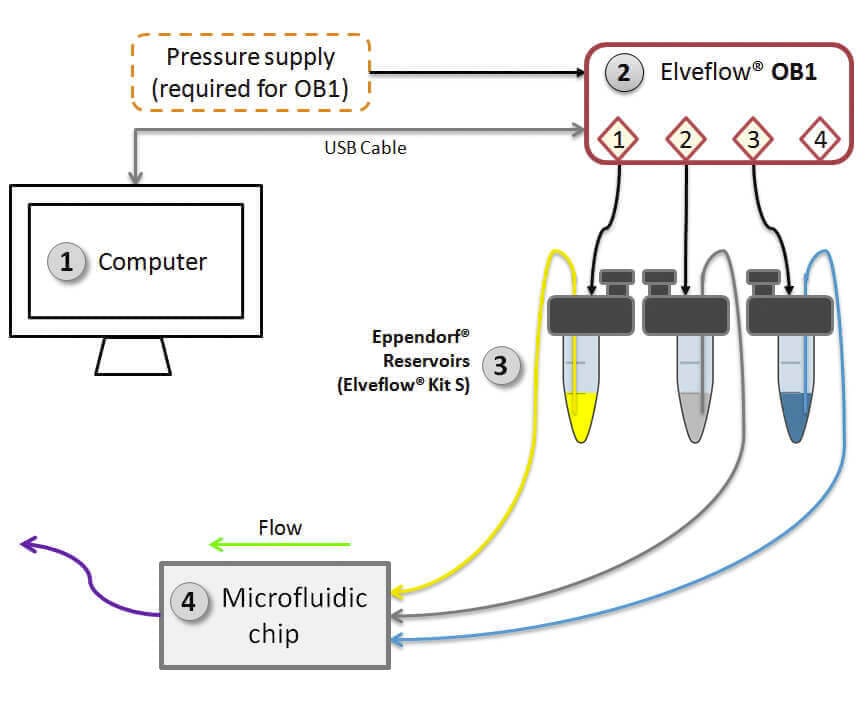
The following diagram illustrates the complete chain of elements involved in this application note. To set up your experiment, you will need to assemble all these parts:
Microfluidic cardiac cell culture model Protocol
This is an example of how to use the Elveflow Smart Interface to set a series of functions and pressure values, and add them to the project scheduler:
First, make sure that all the cables and tubings are well connected to your Elveflow devices (USB cable, 24V DC, etc).
Perform leakage tests and remove any air bubbles before starting your experiment to ensure a good flow regulation. Knowing what fitting is best suited to your needs is a first step towards success. If you’re not familiar with microfluidic fittings, you may read our specific reviews.
- Step 1 – Open the Elveflow® smart interface on the computer by connecting the MUX and the OB1.
- Step 2 – Select the OB1 (“OB1MixO1” on the example case) and set an initial desired functions and pressure values in mbar for each channel. On the example case we have set:
Channel 1 (Yellow medium): Function sinus, max pressure 160 and min pressure 118 mbar, period 0.7 seconds and dissymmetry 180 (in order to oppose phases) Channel 2 (White medium): Function constant, 120 mbar. Channel 3 (Blue medium): Function sinus, max pressure 160 and min pressure 118 mbar, period 0.7 seconds and dissymmetry 0.
You can save this configuration for later use by clicking on the “save config” button.
You can change the channel name by directly editing the channel name display at the left side of the window.
- Step 3 – In order to add these parameters to the scheduler , click on the “Add step to project” button.
- Step 4 – On the scheduler window, press “New step” on the scheduler table. Select the action “Wait” and insert the performing time (“wait time“) for the instruments listed before (8 seconds on the example case).
- Step 5 – Back on the OB1 main window, set the next desired functions and pressure values in mbar for each channel. On the example case we have set:
Channel 1 (Yellow medium): Function sinus, max pressure 45 and min pressure 22 mbar, period 0.7 seconds and dissymmetry 0. Channel 2 (White medium): Function constant, 35 mbar. Channel 3 (Blue medium): The same configuration as channel 1 (this time we are not going to oppose phases).
- Step 6 – Repeat steps 3 and 4.
- Step 7 – Back on the OB1 main window set the next desired functions and pressure values in mbar for each channel. On the example case we have set:
Channel 1 (Yellow medium): Function square, max pressure 10 and min pressure 6.5 mbar, period 0.5 seconds, dissymmetry 0. Channel 2 (White medium): Function constant, 6.8 mbar. Channel 3 (Blue medium): The same configuration as channel 1, but setting the dissymetry to 180.
- Step 8 – Repeat steps 3 and 4.
- Step 9 – Finally, in order to insert a loop to repeat all the steps a desired number of times, press “New step” on the scheduler table and select the action “Go to”. Choose the step 1 to start the loop (“Step to go”:1) and the repeat number (“repeat”:5 in the example case)
- Step 10 – Press the button “Start” to start performing the project.
If needed, it is possible to see a graph display by clicking on the “open graph display” button. Set the desired maximum and minimum shown parameters on the display window for pressure and flow rate and press the play icon to launch the pressure and flow rate profiles display. Select the channels you want to display by ticking the corresponding boxes on the channel display selection block.

Microfluidics knowledge
Do you want tips on how to best set up your microfluidic experiment? Do you need inspiration or a different angle to take on your specific problem? Well, we probably have an application note just for you, feel free to check them out!

 Job
Job Collaborations
 Customer
 Other
Other