Elveflow SDK Tutorial Part 1: Setting Up Your Environment
The purpose of this Jupyter Notebook is to work as a quick guide to the SDK development with the Elveflow products. The process is shown using a OB1 Pressure Controller with a FS5D Flow Sensor, but it works also for any other Elvesys product.
Before starting with this introduction, make sure you have read all the documentation related to your purchased products. Disregarding that information could increase the risk of damage to the equipment, or the risk of personal injuries. In case you don’t have a copy, you can download all the documents from our website.
The content of this chapter of the tutorial is the following:
- System setup
- SDK files
- Instrument configuration
- Sensor addition
- System calibration
- Main execution routine
1.1 Installation
1.1.1 Tested system
This tutorial has been written and tested using Windows 10, 64bits, Python 3.8.8, Jupyter Notebook 6.3.0 in October, 2021. The pressure controller is an OB1 MK3+ and the flow sensor a FS5D.
1.1.2 SDK Files
1.2 System Test
1.2.1 Instrument configuration
Once the SDK has been correctly installed, it is also necessary to configure it to work with the desired system. If you previously installed the ESI, an application called NI MAX should have been installed as well. It is needed to check the exact name of the device.
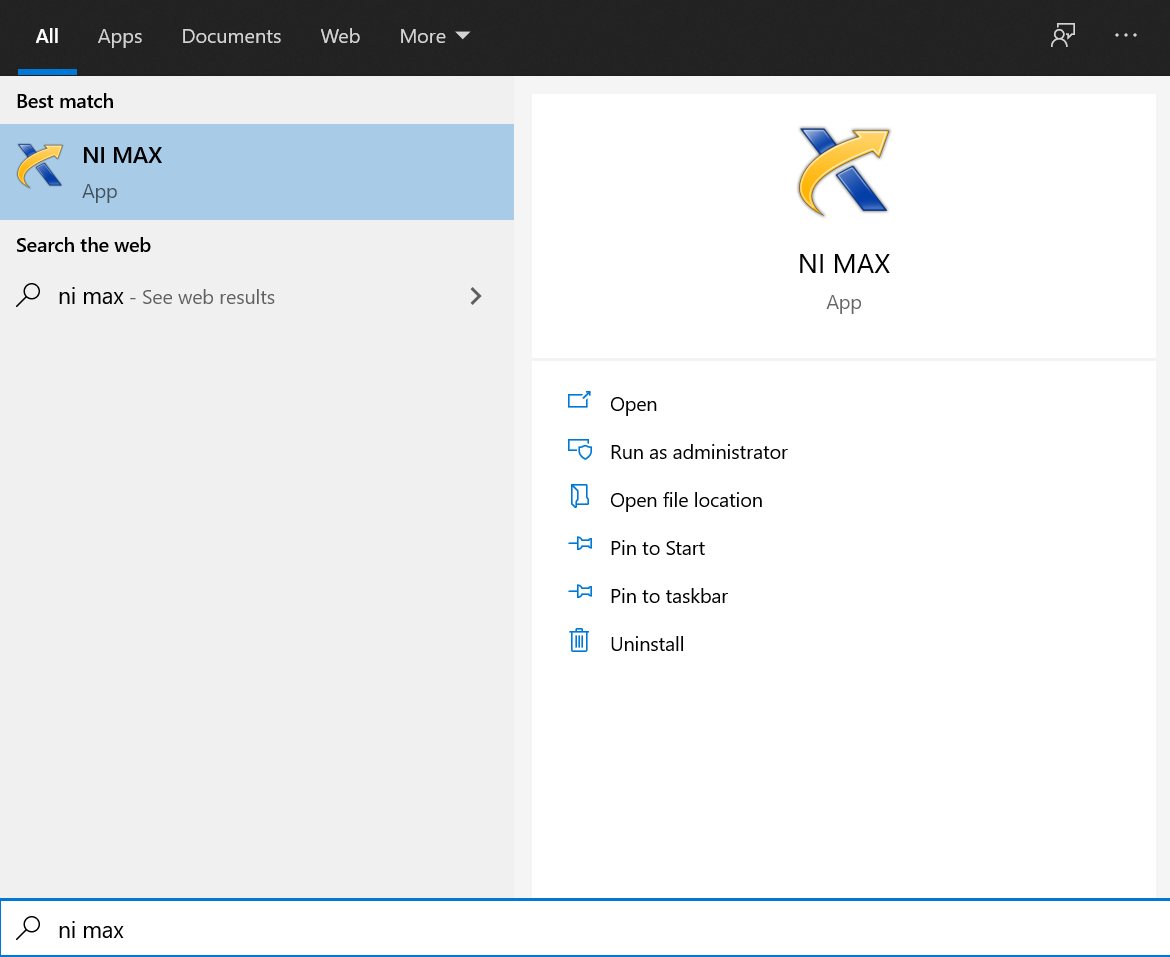
How? First, connect your device to the power supply, connect its USB cable to the computer you are using and turn it on. After that, go to Windows search bar and type ‘NI MAX’ without the quotes. It should appear as the first result as you can see in the following figure:
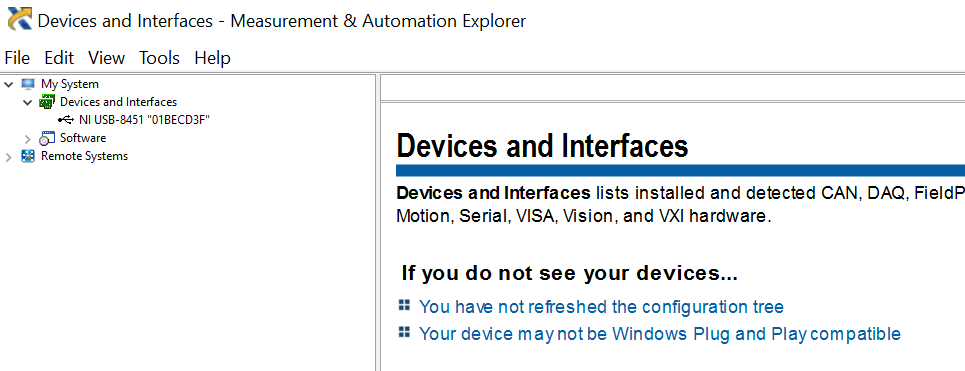
Then, just unzip the left tabs: ‘My System > Devices and Interfaces > …’ like you can see as follows.
If you don’t have more National Instrument’s devices connected to your computer, the only result should be the OB1 Pressure Controller (or the one that you try to configure). Click on it and write down its Serial Number. You will need it for your custom software to interact with the device. In this example, the device Serial Number is 01BECD3F.
The next step is to know the arrangement of pressure regulators that your system has, because our OB1 can be customized to have the right pressure setup for the client. In order to identify them, you can check it on the OB1 User guide, at the installation chapter.
Each regulator value has a different encoding value. The correspondance is the following:
I am raw html block.
Click edit button to change this html
Regulator Types Table
| Regulator type (by range) |
Code |
| Non-installed |
0 |
| (0, 200) mbar |
1 |
| (0, 2000) mbar |
2 |
| (0, 8000) mbar |
3 |
| (-1000, 1000) mbar |
4 |
| (-1000, 6000) mbar |
5 |
#
# Initialization of OB1 ( ! ! ! REMEMBER TO USE .encode('ascii') ! ! ! )
#
Instr_ID = c_int32()
print("Instrument name and regulator types are hardcoded in the Python script")

# See User Guide to determine regulator types and NIMAX to determine the instrument name
# error = OB1_Initialization('01BECD3F'.encode('ascii'),3,2,0,0,byref(Instr_ID))
error = OB1_Initialization('01CF6A61'.encode('ascii'),2,3,4,4,byref(Instr_ID))

# All functions will return error codes to help you to debug your code, for further information refer to User Guide
print('error:%d' % error)
print("OB1 ID: %d" % Instr_ID.value)
Note. Level sensor type stands for all types of level sensor such as bubble detector.
The following is the encoding of the possible resolution bits:
# Add one digital flow sensor with water calibration (OB1 MK3+ only), all information to declare sensors are described in the User Guide
# error = OB1_Add_Sens(Instr_ID, 2, 4, 1, 0, 7, 0)
# (CustomSens_Voltage_5_to_25 only works with CustomSensors and OB1 from 2020 and after)

# To test the pressure sensors
error=OB1_Add_Sens(Instr_ID, 1, 10, 0, 0, 7, 0)
error=OB1_Add_Sens(Instr_ID, 2, 10, 0, 0, 7, 0)
error=OB1_Add_Sens(Instr_ID, 3, 10, 0, 0, 7, 0)
print('error add digit flow sensor:%d' % error)
error add digit flow sensor:0
1.1.4 System calibration
Here you can choose, essentially, one of the three available options: default, load and new. The calibration consists of an array which stores the actual values associated to your instrument.
If you previously proceeded with a calibration process, you can load it from the Calib_path that you must previously specify. Otherwise, if you want to run a calibration process, ensure that ALL channels are properly closed with adequate caps. You can find more detailed instructions about the calibration procedure at the OB1 User Guide.
Calib = (c_double*1000)() # Always define array this way, calibration should have 1000 elements

while True:
    answer = input('select calibration type (default, load, new ) : ')
    Calib_path = 'C:\\Users\\Public\\Desktop\\Calibration\\Calib.txt'
    if answer == 'default':
        error = Elveflow_Calibration_Default (byref(Calib),1000)
        break

    if answer == 'load':
        error = Elveflow_Calibration_Load (Calib_path.encode('ascii'), byref(Calib), 1000)
        break

    if answer == 'new':
        OB1_Calib (Instr_ID.value, Calib, 1000)
        error = Elveflow_Calibration_Save(Calib_path.encode('ascii'), byref(Calib), 1000)
        print('Calib saved in %s' % Calib_path.encode('ascii'))
        break
The output can be something like the following:
what to do (set_p, get_p, get_sens, or exit) : get_sens
select channel(1-4) : 2
Press or Flow ch 2 :  4.724137931034483
what to do (set_p, get_p, get_sens, or exit) : exit
error : 0


 Job
Job Collaborations
 Customer
 Other
Other